Developer Setup for Data Product Building
Prerequisites
Before diving into hands-on, make sure you have everything ready:
Check required permissions
Ensure you have the necessary roles assigned (data-dev, system-dev, and operator) to create and manage data products in DataOS. In DataOS, roles are defined with specific tags such as data-dev, system-dev, and operator. These tags determine the permissions and access levels for users.
| Access Permission (via use-cases) | Access Permissions (via tags) |
|---|---|
| Read Workspace | roles:id:data-dev |
| Manage All Depot | roles:id:system-dev |
| Read All Dataset | roles:id:user |
| Read all secrets from Heimdall | (Not specified) |
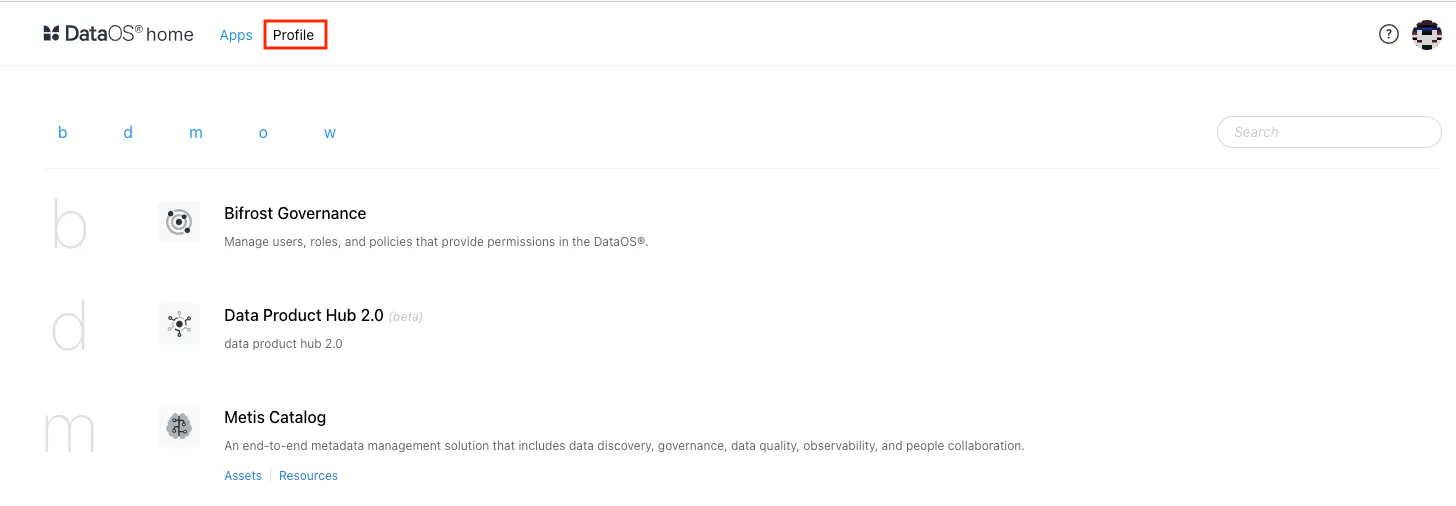
To check this, login to DataOS and view your profile. You can verify the assigned roles by checking the associated tags.
Check CLI installation
You need this text-based interface that allows you to interact with the DataOS context via command prompts.
Open a command terminal and follow the installation guide for your operating system. Once the installation is complete, proceed with the initialization.
DataOS context initialization & login
After successful installation of dataos-ctl, let's initialize and log in to the DataOS context using CLI.
a. Open terminal
b. Type:
c. Follow the prompts and provide inputs depending on your user role:
INFO[0000] The DataOS® is already initialized, do you want to add a new context? (Y,n)
-> Y   # input the answer: Y or n

INFO[0255] 🚀 initialization...

INFO[0255] The DataOS® is not initialized, do you want to proceed with initialization? (Y,n)
-> Y

INFO[0269] Please enter a name for the current DataOS® Context?
-> {{name of the DataOS context}}
# Example: marmot (or any name you prefer).
# Your enterprise may offer multiple contexts — pick one to start.
# You can switch context anytime using a CLI command after login.

INFO[0383] Please enter the fully qualified domain name of the DataOS® instance?
-> {{domain name}}
# Example: apparent-marmot.dataos.app

INFO[0408] Entered DataOS®: marmot : apparent-marmot.dataos.app

INFO[0429] Are you operating the DataOS®? (Y,n)
-> n
# If you are the operator (admin) for your enterprise, type Y.
# If you type Y, the installation steps will change.

INFO[0452] 🚀 initialization...complete
d. Now, log in:
Output:
INFO[0000] 🔑 login...
INFO[0000] 🔑 refresh...
INFO[0003] authorize...
INFO[0004] authorize...complete
INFO[0004] 🔑 refresh...complete
INFO[0004] 🔑 login...complete
e. Verify the CLI installation:
Install any IDE, such as Visual Studio Code
This is necessary for creating YAML files for your Data Product. Installation links for various operating systems are provided below:
- **Linux**: [Install VS Code on Linux](https://code.visualstudio.com/docs/setup/linux)
- **Windows**: [Install VS Code on Windows](https://code.visualstudio.com/docs/setup/windows)
- **macOS**: [Install VS Code on macOS](https://code.visualstudio.com/docs/setup/mac)
Checklist
- ✅ CLI is installed
- ✅ CLI is initialized and logged in
- ✅ IDE (like VS Code) is installed