Snowflake
You can store Snowflake credentials in DataOS using an Instance Secret in either of these ways:
-
Username and password: Store the Snowflake login name and password in the Instance Secret (no RSA keys). Complete Pre-requisites for your chosen method, then follow Steps to create an Instance Secret (username and password).
-
RSA key-pair authentication: Use an RSA key pair, register the public key with the Snowflake user, and store the encrypted private key in DataOS. Complete Pre-requisites for your chosen method, then follow Steps to create an Instance Secret (RSA key-pair authentication).
Pre-requisites
Access Permissions in DataOS
To create an Instance Secret in DataOS, at least one of the following role tags must be assigned:
-
roles:id:data-dev -
roles:id:system-dev -
roles:id:user
Checking Assigned Roles
Use the following command to verify assigned roles:
If any required roles are missing, contact a DataOS Operator or submit a Grant Request for role assignment.
Alternatively, if access is managed through use cases, ensure the following use case is assigned:
-
Manage All Instance-level Resources of DataOS in User Layer
To validate assigned use cases, refer to the Bifrost Application Use Cases section.
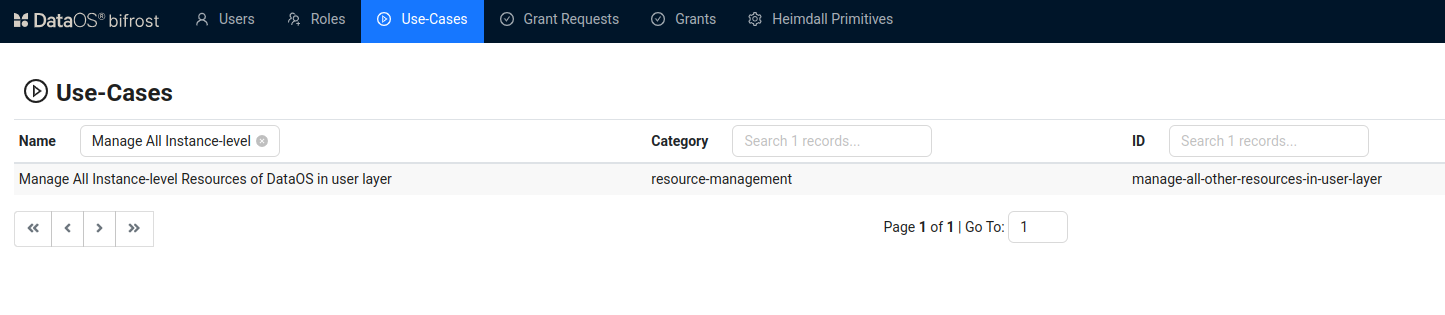
Bifrost Governance
Snowflake credential requirements
Each Instance Secret uses either password fields or key-pair fields, never both. In both cases you need the Snowflake username that will authenticate.
Username (required for both methods)
- Username: The Snowflake username used to authenticate to the Snowflake account. This can be obtained from your Snowflake administrator or found in your Snowflake account settings.
Additional requirements for username and password authentication
- Password: The Snowflake user’s login password. Confirm with your administrator that password-based programmatic access is permitted; policies (for example key-pair-only users or MFA constraints) may make key-pair authentication the viable option instead.
Additional requirements for RSA key-pair authentication
-
RSA key pair: Generate a public and private RSA key pair in PKCS#8 PEM format.
-
Register the public key (
snowflake_rsa_key.pub) with your Snowflake user account: -
The private key (
snowflake_rsa_key.p8) is pasted into the Instance Secret manifest askey.
For key generation and registration, see the Generate RSA Key Pair section.
-
-
Passphrase: A secure passphrase that encrypts the private key (the same value referenced as
passphrasein the manifest).
Read-only and read-write Instance Secrets
Begin by creating a manifest file to hold the configuration details for your Snowflake Instance Secret. Depending on your access needs (read-only or read-write), start with the corresponding YAML template provided below
Steps to create an Instance Secret (username and password)
Use this path when password-based login is allowed for your Snowflake user and you prefer not to manage RSA key material.
Step 1: Create a manifest file
Begin by creating a manifest file to hold the configuration details for your Snowflake Instance Secret. Depending on your access needs (read-only or read-write), start with the corresponding YAML template below.
# Snowflake Read Instance-secret Manifest (username and password)

name: ${snowflake-depot-name}-r # Unique identifier for Resource, replace ${snowflake-depot-name} with depot name
version: v1 # Manifest version
type: instance-secret # Type of the Resource
description: ${description} # Purpose of the Instance-secret
layer: user # DataOS layer
instance-secret:
  type: key-value-properties # Secret type
  acl: r # Access control: 'r' for read-only
  data:
    username: ${snowflake-username}
    password: ${password} # replace with Snowflake password
# Snowflake read-write Instance-secret Manifest (username and password)

name: ${snowflake-depot-name}-rw # Unique identifier for Resource, replace ${snowflake-depot-name} with depot name
version: v1 # Manifest version
type: instance-secret # Type of the Resource
description: ${description} # Purpose of the Instance-secret
layer: user # DataOS layer
instance-secret:
  type: key-value-properties # Secret type
  acl: rw # Access control: 'rw' for read-write
  data:
    username: ${snowflake-username}
    password: ${password} # replace with Snowflake password
# Snowflake Read Instance-secret Manifest (username and password)

name: sfdepottest-r # Unique identifier for Resource
version: v1 # Manifest version
type: instance-secret # Type of the Resource
description: snowflake credentials # Purpose of the Instance-secret
layer: user # DataOS layer
instance-secret:
  type: key-value-properties
  acl: r
  data:
    username: TESTUSER_1
    password: your-snowflake-password
For password-based secrets, the data section contains only username and password. Do not set auth_mode, passphrase, or key—those fields are used only for RSA key-pair authentication.
Step 2 and Step 3: Apply and validate
Use Step 2: Apply the manifest and Step 3: Validate the Instance Secret under RSA key-pair authentication below—the dataos-ctl commands are the same for both authentication methods. To remove the Instance Secret, follow Delete the Instance Secret.
Steps to create an Instance Secret (RSA key-pair authentication)
Snowflake is a data warehouse that serves as a centralized repository for structured data, enabling efficient query and analysis. After you complete the RSA key-pair material requirements and register the public key in Snowflake, follow the steps below to build and apply the Instance Secret.
Step 1: Create a manifest file
Begin by creating a manifest file to hold the configuration details for your Snowflake Instance Secret. Depending on your access needs (read-only or read-write), start with the corresponding YAML template provided below.
# Snowflake Read Instance-secret Manifest (RSA key-pair)

name: ${snowflake-depot-name}-r # Unique identifier for Resource, replace ${snowflake-depot-name} with depot name
version: v1 # Manifest version
type: instance-secret # Type of the Resource
description: ${description} # Purpose of the Instance-secret
layer: user # DataOS layer
instance-secret:
  type: key-value-properties # Secret type
  acl: r # Access control: 'r' for read-only
  data:
    username: ${snowflake-username}
    auth_mode: key-pair
    passphrase: ${pass phrase}
    key: |
      -----BEGIN ENCRYPTED PRIVATE KEY-----
      add the private key here
      -----END ENCRYPTED PRIVATE KEY-----
# Snowflake read-write Instance-secret Manifest (RSA key-pair)

name: ${snowflake-depot-name}-rw # Unique identifier for Resource, replace ${snowflake-depot-name} with depot name
version: v1 # Manifest version
type: instance-secret # Type of the Resource
description: ${description} # Purpose of the Instance-secret
layer: user # DataOS layer
instance-secret:
  type: key-value-properties # Secret type
  acl: rw # Access control: 'rw' for read-write
  data:
    username: ${snowflake-username}
    auth_mode: key-pair
    passphrase: ${pass phrase}
    key: |
      -----BEGIN ENCRYPTED PRIVATE KEY-----
      add the private key here
      -----END ENCRYPTED PRIVATE KEY-----
# Snowflake Read Instance-secret Manifest (RSA key-pair)

name: sfdepottest-r # Unique identifier for Resource
version: v1 # Manifest version
type: instance-secret # Type of the Resource
description: snowflake credentials # Purpose of the Instance-secret
layer: user # DataOS layer
instance-secret:
  type: key-value-properties
  acl: r
  data:
    username: TESTUSER_1
    auth_mode: key-pair
    passphrase: SnoF@k3!2025
    key: |        # Key provided here is only for demonstration purpose, please provide the actual key
        -----BEGIN ENCRYPTED PRIVATE KEY-----
        MIIFHDBOBgkqhkiG9w0BBQ0wQTApBgkqhkiG9w0BBQwwHAQIJwUWFEM/l8UCAggA
        MAwGCCqGSIb3DQIJBQAwFAYIKoZIhvcNAwcECMg2/lnrMBUfBIIEyBkriuK7ZXw6
        b3xpJiRRvIdd+Ii9Vd1oxU+qwD/LsBi0sIXSnKzGkEgTEUEpuSuuEH0p8kjOLcbm
        JfVY0iU9ZKdgDb3aqsG8sc4PvSH8xOCzE0Oy4sWH4jnoKMryOi43yd+tR16kR+u5
        PybjvuOeLRB1EUaftrCYe69SzZkZh8dRmSUgYC6PCjmsq3C5+eqNVvqagHfRmHzd
        O7orBZvmsqMNFI47QOLsZ3mplwjzrUqlArLlpa3HXa854z0iM9+U5XA1+uNY+OHy
        a7VR9Ag4NSouhuzEWCxshSWpMEVCO0cT3QWut+E+q+RRXX19UQeL67GcROfsYyP/
        K7JWroJQSTLV5XUSumY1OpcACw/ipO4+ImJ8L8inWFvQ5vBcdEO8uDJmRNr+0xD8
        +lL5rfGAlN97yFeTwzCIQg==
        -----END ENCRYPTED PRIVATE KEY-----
Resource meta section
The Instance Secret manifest includes a Resource meta section with essential metadata attributes common to all resource types. Some attributes in this section are optional, while others are mandatory. For more details, refer to the configurations section.
Instance-secret specific section
This section summarizes attributes under instance-secret for Snowflake:
-
type: Specifies the Instance Secret type (key-value-properties). -
acl: Access control level (read-only or read-write). -
data: Depends on the authentication method. For username and password, include onlyusernameandpassword. For RSA key-pair, includeusername,auth_mode: key-pair,passphrase, and the encrypted private key inkey.
For more information, refer to the configurations section.
Step 2: Apply the manifest
Warning
If the connection credentials contain special characters such as @ : / ? # & = + ; % \ ' { } ( ) * $ !, the --disable-interpolation flag must be used when applying instance-secrets or secrets. This ensures that special characters are retained as-is in the string.
Example:
To create the Snowflake Instance Secret within DataOS, use the apply command. Since Instance Secrets are Instance-level resources, do not specify a workspace while applying the manifest.
Step 3: Validate the Instance Secret
To validate the proper creation of the Instance Secret in DataOS, use the get command.
To get the list of all the Instance Secrets within the DataOS environment execute the following command.
dataos-ctl resource get -t instance-secret -a
INFO[0000] 🔍 get...
INFO[0000] 🔍 get...complete

            NAME            | VERSION |      TYPE       | WORKSPACE | STATUS | RUNTIME |         OWNER
-----------------------------|---------|-----------------|-----------|--------|---------|------------------------
abfssv2alpha-r             | v1      | instance-secret |           | active |         | iamgroot
abfssv2alpha-rw            | v1      | instance-secret |           | active |         | iamgroot
abfsswithoutmetastore-r    | v1      | instance-secret |           | active |         | thisisthor
abfsswithoutmetastore-rw   | v1      | instance-secret |           | active |         | thisisthor
Alternatively, you can also check on Metis UI by searching the Instance Secret by name.
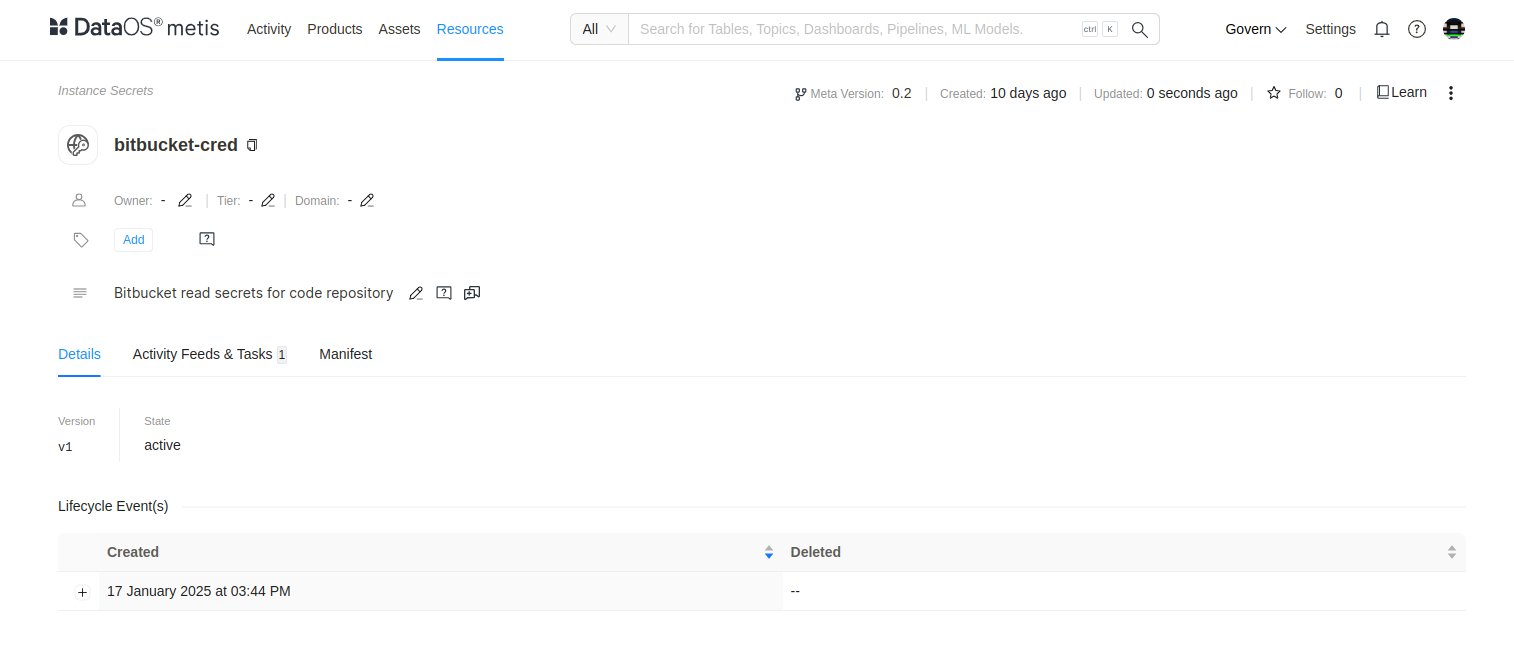
Delete the Instance Secret
To delete an Instance Secret, use one of the following methods:
Method 1
Specify the Resource type and Instance Secret name in the delete command.
Method 2
Copy the Instance Secret name, version, and Resource-type from the output of the get command separated by '|' enclosed within quotes and use it as a string in the delete command.
Method 3
Specify the path of the manifest file and use the delete command.
Troubleshooting
This section provides guidance on resolving errors encountered when using a Snowflake Depot, especially with RSA key-pair Instance Secrets.
| Issue | Cause |
|---|---|
JWT token is invalid |
The private key used by the client doesn’t match the public key on the Snowflake user. |
Insufficient privileges |
The active role cannot modify the user; switch to ACCOUNTADMIN or equivalent. |